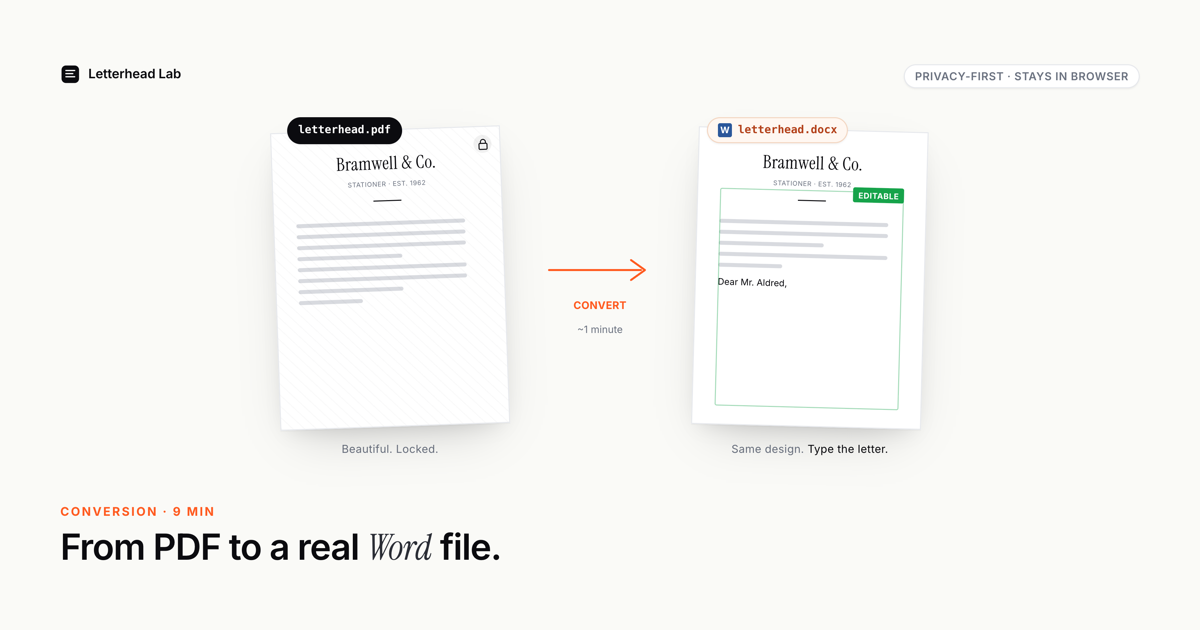
You have a letterhead as a PDF. You need to write letters on it. Those two sentences describe a surprisingly deep problem, and this guide covers all of it: why a PDF will not do the job, why the obvious fixes make things worse, what a correct conversion actually produces, and how to choose between the formats and page sizes once you have it.
Why a PDF letterhead can't be used as-is
A PDF is a finished, fixed document. That is its entire purpose — it preserves a layout exactly, on any device, forever. It is the right format for a letterhead a designer hands off, and the right format to send to a printer.
It is the wrong format to write a letter on. You cannot place a cursor in a PDF and type a paragraph of body text that reflows. PDF editors let you annotate or patch text, but they do not give you a blank, editable letter page with the letterhead fixed in place. For correspondence — a letter you compose, edit, and send — you need a Microsoft Word document.
So the task is conversion: get the design out of the PDF and into a Word file that can actually be typed in. The trouble is that the most obvious ways to do that are all wrong.
Why generic PDF-to-Word converters wreck a letterhead
Search for "PDF to Word" and you will find Smallpdf, ILovePDF, Adobe's online converter, and a dozen others. They all work the same way, and that way is the opposite of what a letterhead needs.
A generic converter assumes you want everything editable. Given a PDF, it tries to turn every element into something Word can edit: text becomes text boxes, the logo becomes traced shapes or rasterised fragments, the address block becomes a cluster of overlapping frames. For a page of plain prose, that is genuinely useful. For a designed letterhead it is destructive:
- The logo is reconstructed in whatever font Word guesses at — not the font your designer used.
- The address block splits across several text frames that overlap and shift.
- A monogram or crest is rasterised at low resolution.
- Foil, embossing, and fine typographic detail are simply lost.
The result opens in Word, technically. It also looks nothing like the letterhead you paid for. We go deeper on this in why a free PDF-to-Word converter is the wrong tool.
What a generic converter does
Tries to make every element editable. Your logo, address, and monogram are picked apart into text and shapes — the design is "converted" by being taken apart.
What a letterhead conversion does
Keeps the artwork as artwork. The letterhead is placed, untouched, into Word's header and footer; only the letter body is editable.
What a correct conversion produces
The right approach treats the letterhead and the letter as two separate things — because they are. The letterhead is fixed artwork; the letter is editable text.
A correct PDF-to-Word letterhead conversion:
- Takes the top portion of your PDF — the header artwork — as a single high-resolution image.
- Places that image in the Word document's header, anchored to the page.
- Does the same with any bottom artwork, into the footer.
- Sets the body margins so the letter text starts cleanly below the header and ends above the footer.
The outcome is a Word file where the letterhead is pixel-identical to the PDF — because it is the PDF's artwork, as an image — and the body is a blank, editable page. Anyone can open it, type, and send. The letterhead repeats on every page, survives editing, and travels with the file when it is forwarded. That is the model behind every tool variant Letterhead Lab offers.
Doing it by hand versus automatically
The conversion above can be done manually: crop the PDF, export the crops as 300-DPI images, insert them into Word's header and footer, anchor each one, set the margins. It is the correct method, and it takes 30 to 45 minutes when nothing goes wrong. The step-by-step is in our guide to inserting a PDF into a Word header.
The automated route does the identical work in about a minute: upload the PDF, set the crop in a live preview, download the Word file. The conversion runs entirely in your browser, so the PDF — which may itself be sensitive — is never uploaded to a server. The output is the same correct structure either way; the only question is whether the 45 minutes is worth your time.
Choosing the file format: .docx or .dotx
A conversion can produce two Word formats, and the choice depends on how many people will use the letterhead.
A .docx is a normal document. Opening it edits that file. Fine if one person uses the letterhead occasionally.
A .dotx is a template. Double-clicking it opens a fresh, untitled copy — the master is never edited. For a letterhead shared across a team, the .dotx template format removes the risk of someone saving their letter over the master.
If in doubt, take both. A conversion bundle that includes the .docx and the .dotx lets you keep a working document and a protected template from a single upload — no need to decide up front.
Choosing the page size: US Letter or A4
The Word page size has to match the paper the letterhead was designed for, or the letter prints with shifted margins.
- US Letter (8.5 × 11 in) — North America. The US Letter conversion is the default for domestic correspondence.
- A4 (210 × 297 mm) — the UK, Europe, Australia, and most of the world. If you write internationally, you need an A4 version too.
If your correspondence crosses borders, convert once and keep both sizes so the design is identical on each.
One letterhead or several
Many people and organisations have more than one letterhead. A family has a personal monogram, a foundation, and a family business. A firm has per-office or per-practice-group variants. A studio holds letterheads for a whole roster of clients.
When you have several, converting them one at a time is wasteful. Putting each letterhead on its own page of a single PDF and converting them together is far more efficient — and it is exactly how a family office handles its separate identities or a design agency converts across its client list. Long letters add another dimension: a multi-page conversion builds in the continuation header that formal multi-page correspondence expects.
A note on privacy
A letterhead PDF is not always neutral. It can carry a confidential client name, a matter reference, or simply signal who a private family is. Uploading that to a third-party conversion server is a real consideration.
A browser-based conversion sidesteps it entirely. When the PDF is parsed and the Word file is built locally, in your browser, the file never leaves your device. Nothing about the letterhead is transmitted, stored, or logged. For law firms and family offices in particular, that is not a nice-to-have — it is the reason the conversion is safe to run at all. It also means there is no account to create and no file to delete afterward: the conversion leaves no trace on any server because it never touched one.
Living with the converted file day to day
A conversion is a one-time step; the Word file then lives in your normal workflow. A few things are worth knowing about how it behaves.
Sending the letter. The converted file is a Word document, and you use it like any other. Write the letter, then send it however you normally would — attach the .docx, or, more commonly for formal correspondence, export a PDF from Word and send that. The exported PDF carries the letterhead exactly, because the letterhead is part of the document's header and footer.
Editing the body. Everything between the header and footer is ordinary, editable Word text. Track changes, comments, styles, tables — all of it works normally. None of it can disturb the letterhead, because the letterhead is not in the body. This is the practical payoff of putting the artwork in the header: the letter and the letterhead cannot interfere with each other.
Forwarding the file. Because the letterhead is a flat image baked into the document, the file looks identical on every machine that opens it. There is no embedded object that needs a particular application installed, and no linked image that can go missing. Forward the .docx to a colleague and they see what you see.
Updating the design. When the letterhead itself changes, you do not edit the converted file — you reconvert the new PDF and replace the template. Letters already written keep the letterhead they were created with, which is usually what you want: a letter sent last year should still look like last year's letterhead.
The converted file, in other words, behaves like a well-made Word document, because that is what it is. The conversion's job was to get the design in correctly; once that is done, there is nothing special to manage.
The short version
A PDF letterhead cannot be typed on; it has to become a Word document. Generic converters do this by destroying the design. A correct conversion keeps the artwork as an image in Word's header and footer and leaves the body editable.
Choose .dotx if a team will share it, match the page size to the paper, convert multiple letterheads together, and — if the letterhead is sensitive — use a conversion that runs in the browser. Get those decisions right and a PDF letterhead becomes a Word file your whole organisation can actually use.
Frequently asked questions
- Can I convert a PDF letterhead to Word for free?
You can preview the conversion for free. Generic free PDF-to-Word converters exist but are the wrong tool — they make the letterhead editable and break the design. A correct letterhead conversion keeps the artwork intact.
- Why does my logo look wrong after a normal PDF-to-Word conversion?
Because generic converters try to recreate the logo with fonts and shapes rather than keep it as an image. A letterhead conversion places the artwork as a high-resolution image, so the logo looks exactly as designed.
- Is the converted file a real Word document?
Yes. It is a standard
.docx(or.dotxtemplate) that opens in Word, Google Docs, or Pages. The letterhead sits in the header and footer; the body is fully editable.- Should I convert to .docx or .dotx?
A
.docxfor a single user; a.dotxtemplate for a shared letterhead, because Word opens a fresh copy from a template and the master is never overwritten.- Is my letterhead PDF uploaded during conversion?
With a browser-based conversion, no. The PDF is parsed and the Word file is built locally on your device — nothing is transmitted to a server.